Before you begin
Complete these steps in your web browser at your Teamvibe company URL before installing the app in Microsoft Teams. Use the same Microsoft work account your employees use in Teams.
- Sign in at your company URL (for example
yourcompany.teamvibe.com) with a Teamvibe organization admin account - Open Admin Center → People → Roles & access and enable Microsoft login
- In Allowed Domains, add your organization's Microsoft work email domain (for example
yourcompany.com). It must match the domain employees use to sign in to Microsoft Teams - Sign out if you are already signed in, return to the login page, and choose Continue with Microsoft. An organization admin must complete this once to link your Microsoft tenant to Teamvibe
Pin Teamvibe in Microsoft Teams
After browser setup is complete, a Microsoft Teams administrator pins Teamvibe for your organization. Employees may need to restart Teams or wait a few minutes for the policy to apply.
Go to admin.teams.microsoft.com and sign in with your organization's Microsoft work account. In the left menu, expand Teams apps and select Setup policies.

On the App setup policies page, select Global (Org-wide default), then click Edit.

On the edit policy page, scroll to Pinned apps and click + Add apps.

In the Add pinned apps pane, search for Teamvibe and click Select next to the app.

Confirm Teamvibe appears under Apps to add, then click Add.

Teamvibe is added to the App bar list. Select Teamvibe in the list.

Click Move up (or drag Teamvibe) until it sits near the top of the sidebar. We recommend placing it below Activity and Chat so employees can find it easily.

Click Save at the bottom of the page to apply the policy.

You return to the policies list. When the success message appears, click OK.

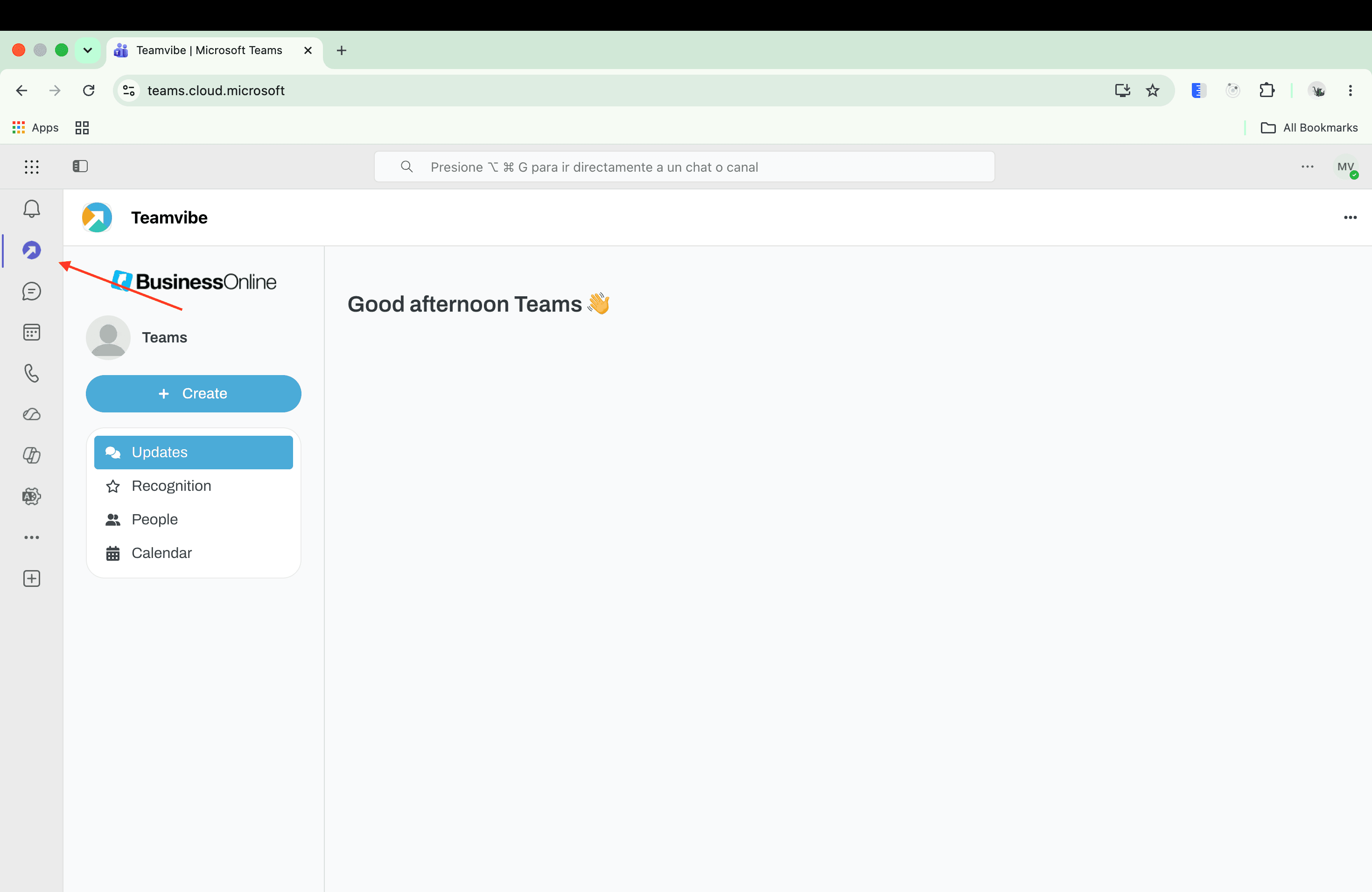
Open Microsoft Teams. Teamvibe appears in the left sidebar where you pinned it. Select it to open Updates, Recognition, Channels, People, and Calendar.
Use Teamvibe in Microsoft Outlook
Once Teamvibe is pinned in the Teams admin center, it is also available in Outlook under More apps. Unlike Teams, there is no org-wide policy to pin the app in Outlook — each user can pin it to their own sidebar manually.
See the Microsoft Outlook integration guide for step-by-step instructions to share with employees.
If sign-in fails in Teams
Work through these checks in order:
- Confirm a Teamvibe organization admin completed Continue with Microsoft in the browser (tenant link step above)
- Confirm the employee's email domain is listed under Allowed Domains in Admin Center → People → Roles & access
- Confirm the employee has a Teamvibe account and Microsoft login is enabled
- Confirm Teamvibe is pinned in the Teams admin center setup policy and the employee has opened the app from the Teams sidebar